

DATA PACKS
Silva-Laser
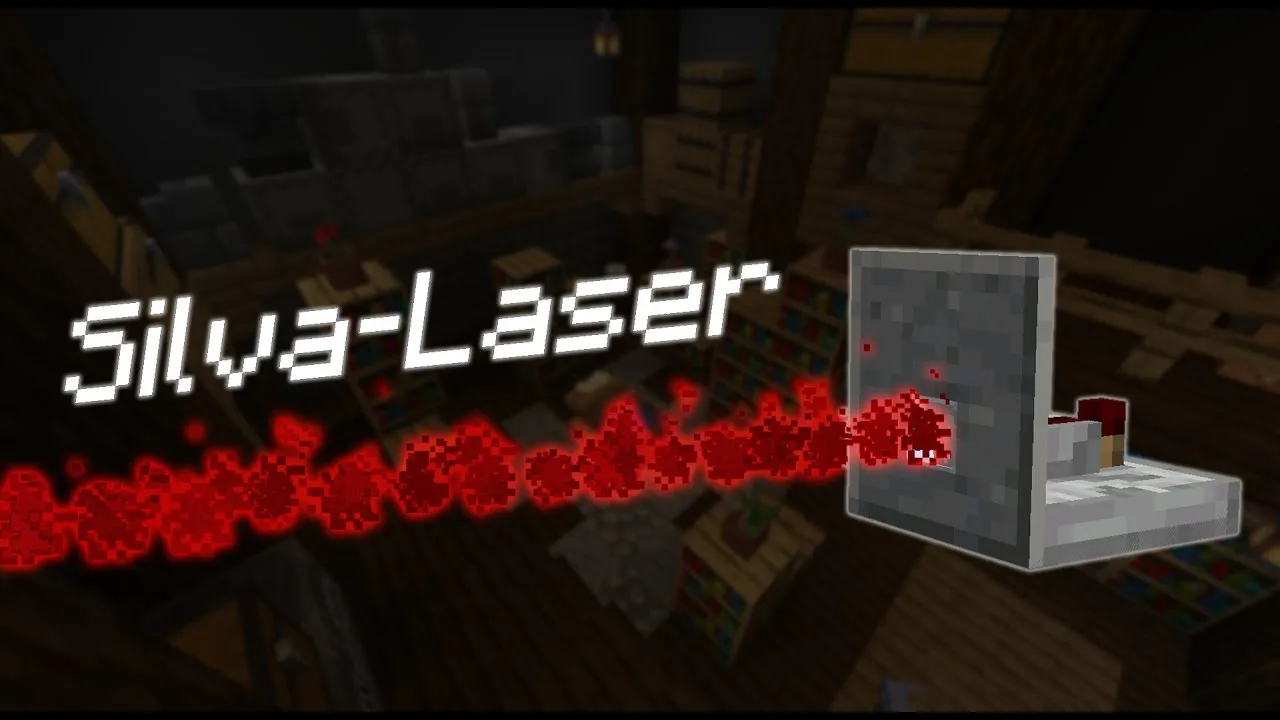
A datapack that adds detection lasers able to spot any entity passing in front of them and trigger your redstone circuits.
September 19, 2021
What if a zombie could replay your exact movements? That’s the whole idea behind the Replay Cube: you record a movement, then an entity reproduces it perfectly. Great for shooting machinimas and short films, or bringing your maps to life with no effort.
This datapack was made solo by Silvathor, one of Oneiric Forge’s founders. It’s gathered here with his other datapacks so they can all be found in one place. The video shows version 2, released in February 2020.
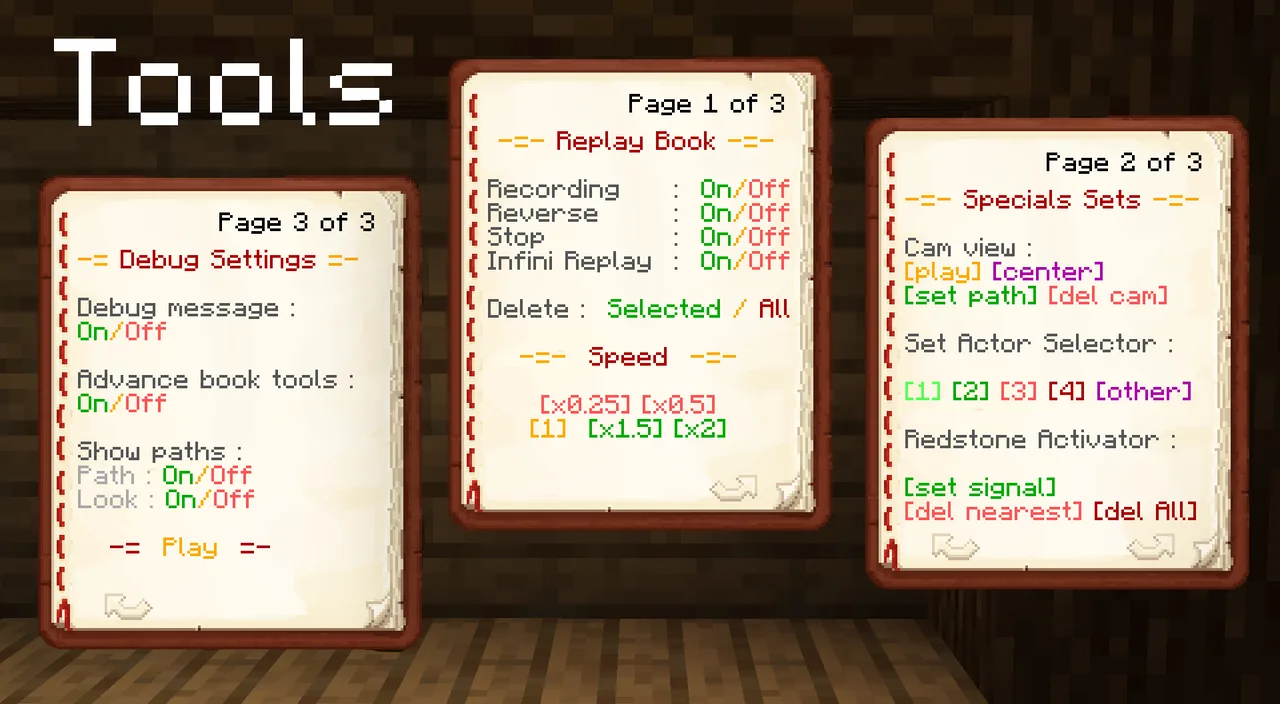
To start, give yourself the cin tag with the /tag @s add cin command. You then receive the ReplayBook, the book that controls the whole datapack.
Also remember to enable the book’s advanced tools, still on page 3: they come in handy.
One actor is good; several is better! On page 2, choose the path to record: each one can hold a different movement, so several mobs can act at the same time. The book offers 4 shortcuts, but the command shown in the other settings lets you use up to 4,294,967,296 paths… as long as you have a NASA computer!
A failed path? No problem: on page 1, you can delete the selected path, or wipe everything at once.
The Replay Cube also lets you make tracking shots. You can record a camera movement, delete it, play it, or use the Center button to keep the camera aimed at a specific point. Just like with entities, path display also works with the camera.
Finally, you can fire redstone signals at the right moment with /trigger red set followed by the duration in ticks (20 ticks = 1 second). You can delete the nearest signal or all of them, and they also show up when path display is enabled. To make a signal turn off a little later, place a second signal under the first one, with a longer duration.
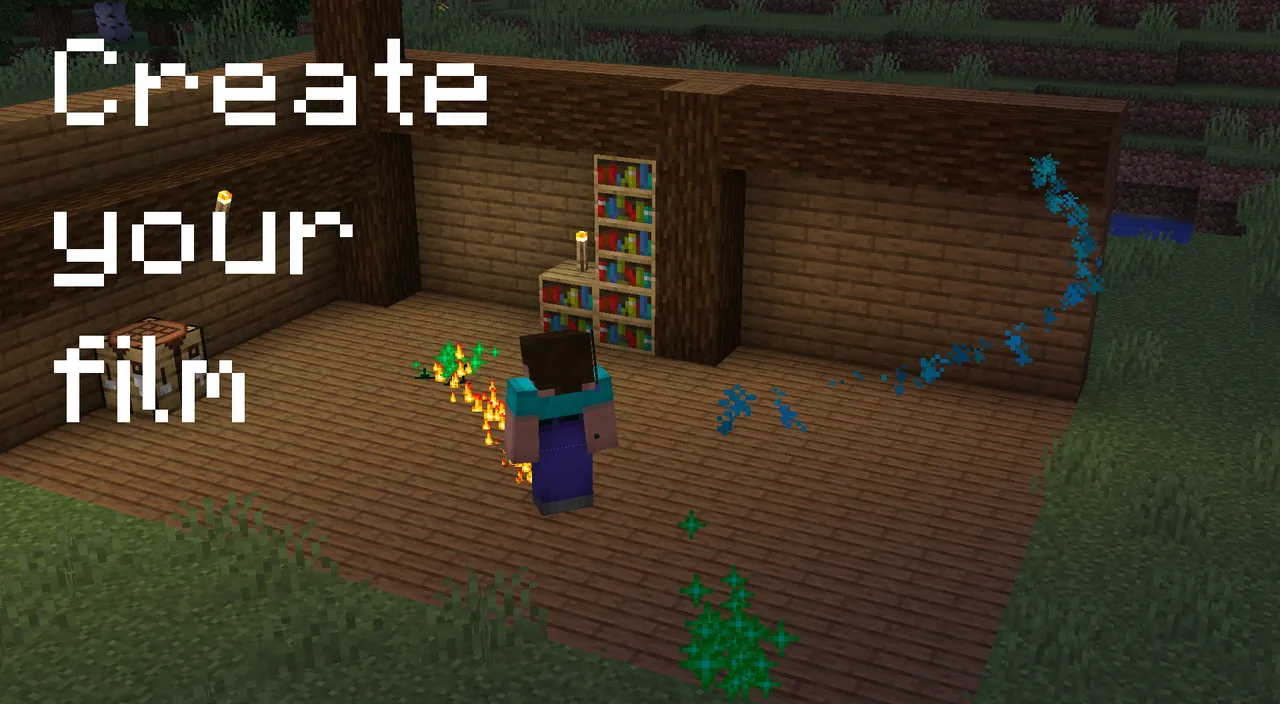
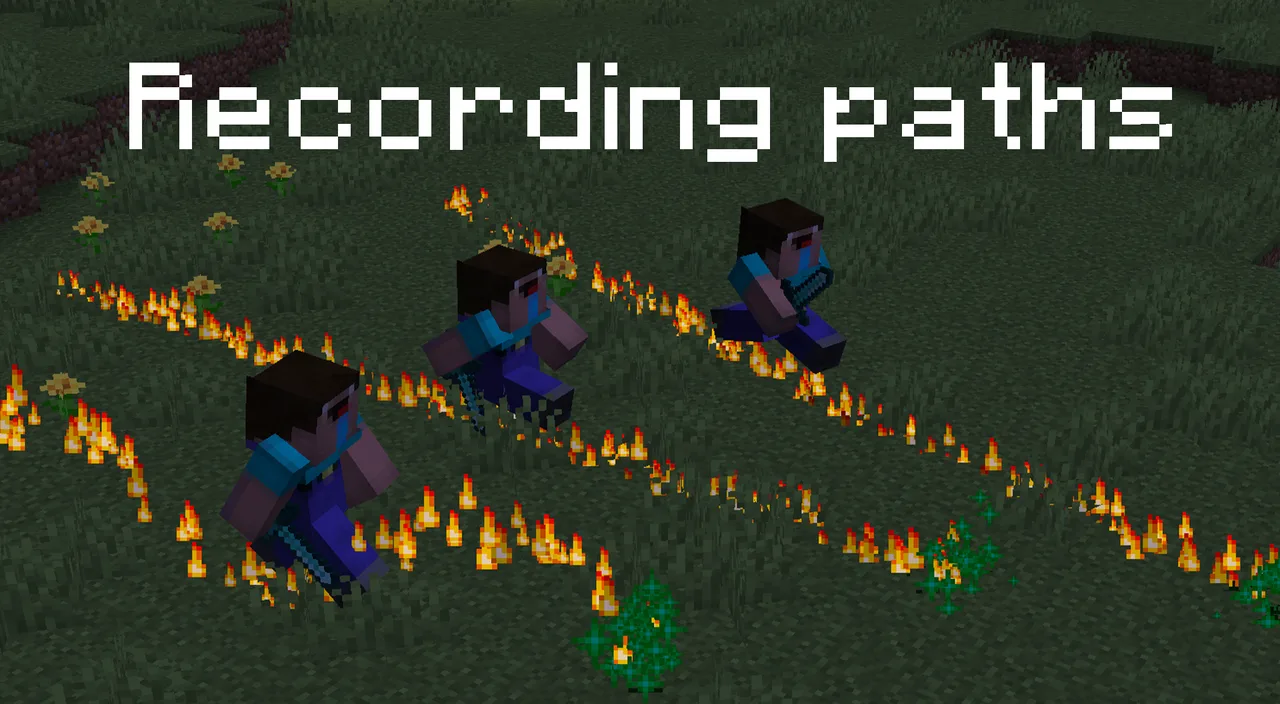

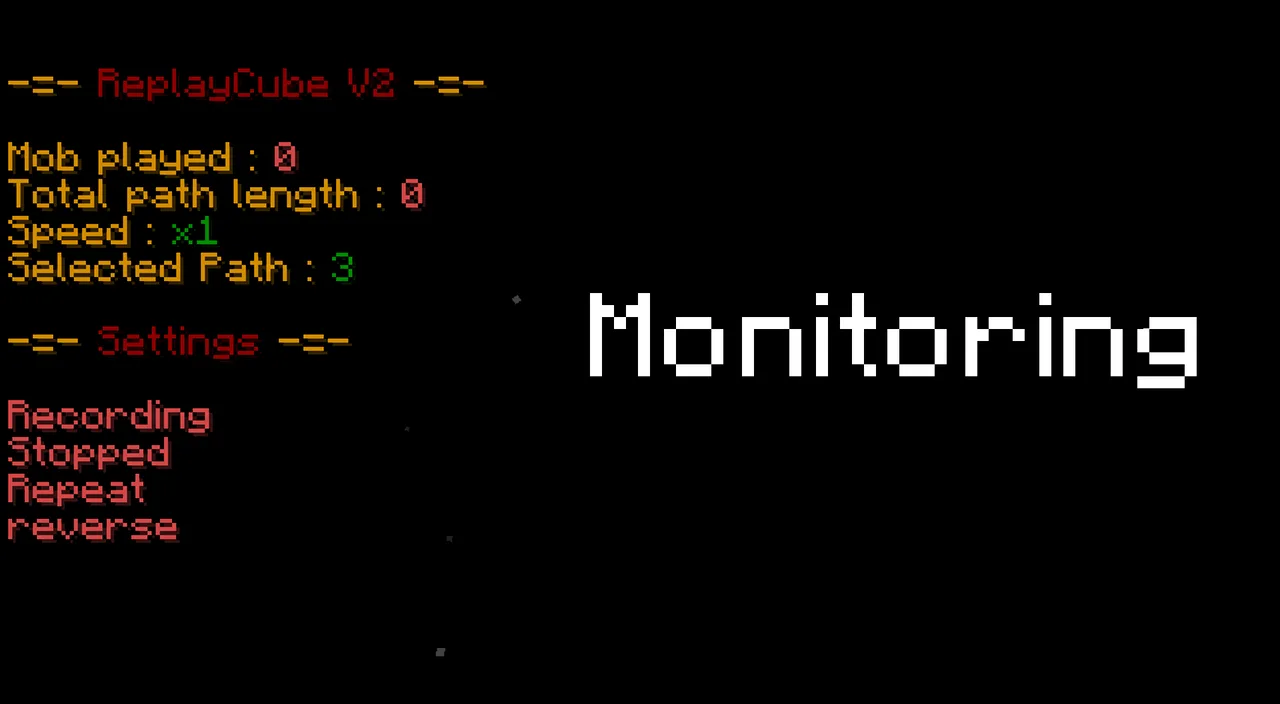
Now it’s your turn to act… and to film!
- By Oneiric Forge

A datapack that adds detection lasers able to spot any entity passing in front of them and trigger your redstone circuits.
A small, handy datapack that opens and closes double doors with a single click.
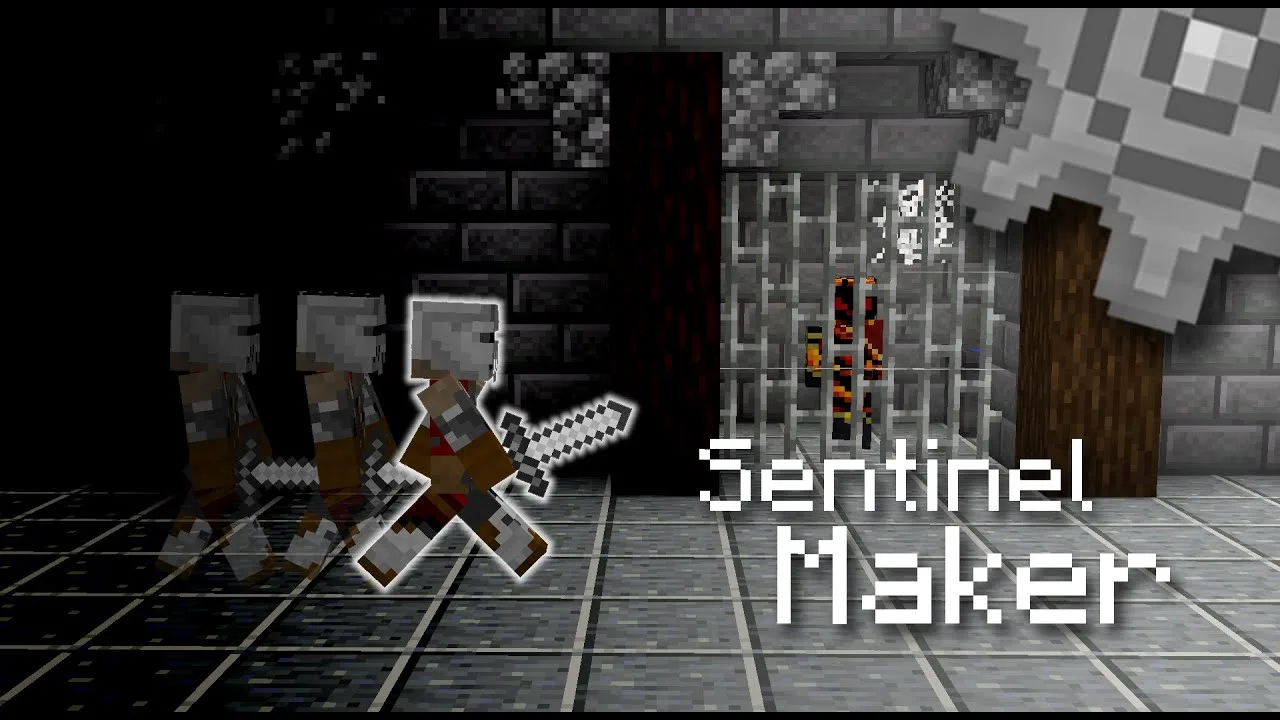
A map making tool to program soldier patrols and moving platform paths, perfect for building stealth maps.